The "5G Unlimited Data-Only eSIM" product we offer (excluding the 1-day and 2-day plans) can also provide internet access via Starlink supported WiFi networks (on some Ferries and selected Mountain Huts).
Ferry (Starlink WiFi Service)
Starlink WiFi services are available on the following Ferries -
Shin Nihonkai Ferry (on the Lavender, Azalea, Suzuran and Suisei vessels)
Tokyo Kyushu Ferry (on the Hamayu and Soleil vessels)
Click here for additional instructions
Android Handsets:
Click here to view our guide
1) Enable WiFi and scan for networks
2) Select the "Entry" network as shown in the example below -
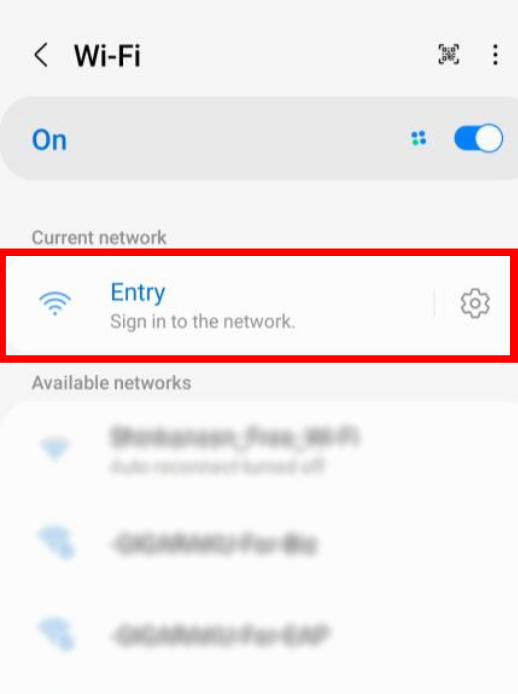
3) You should then be redirected to the page below after connecting to the network (or after opening the web browser).
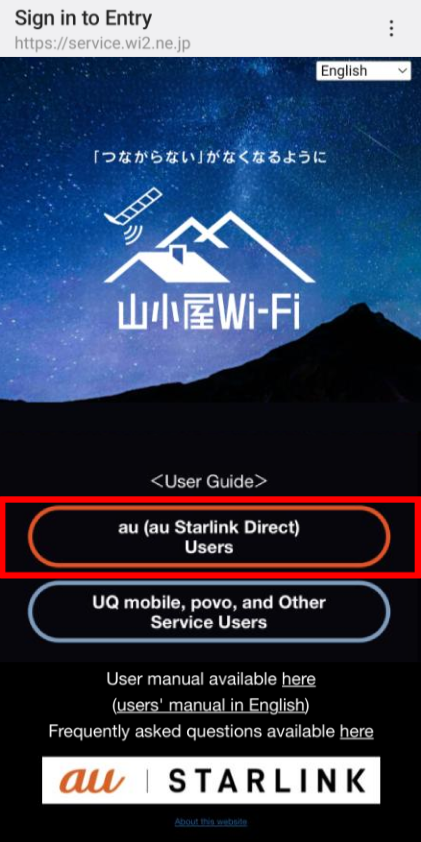
Please select the "au (au Starlink Direct) Users" option highlighted in red -
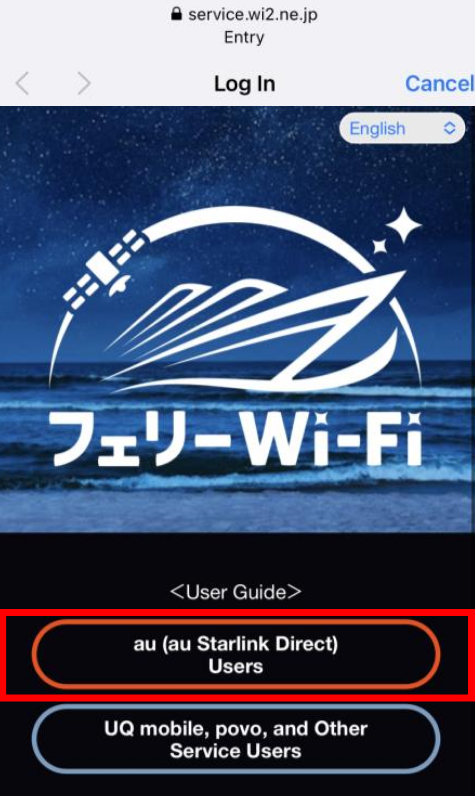
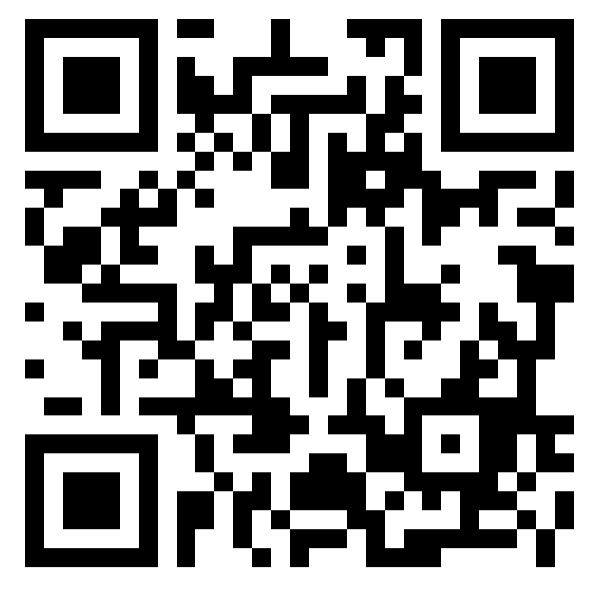
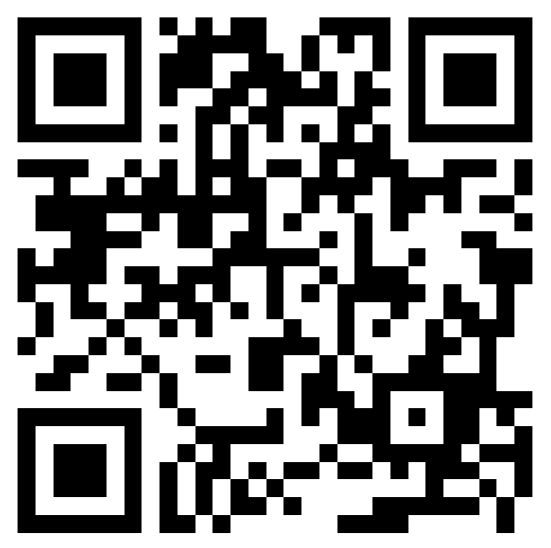
If you are not taken to this page automatically however, please scan the QR code below and then select the "au (au Starlink Direct) Users" option -
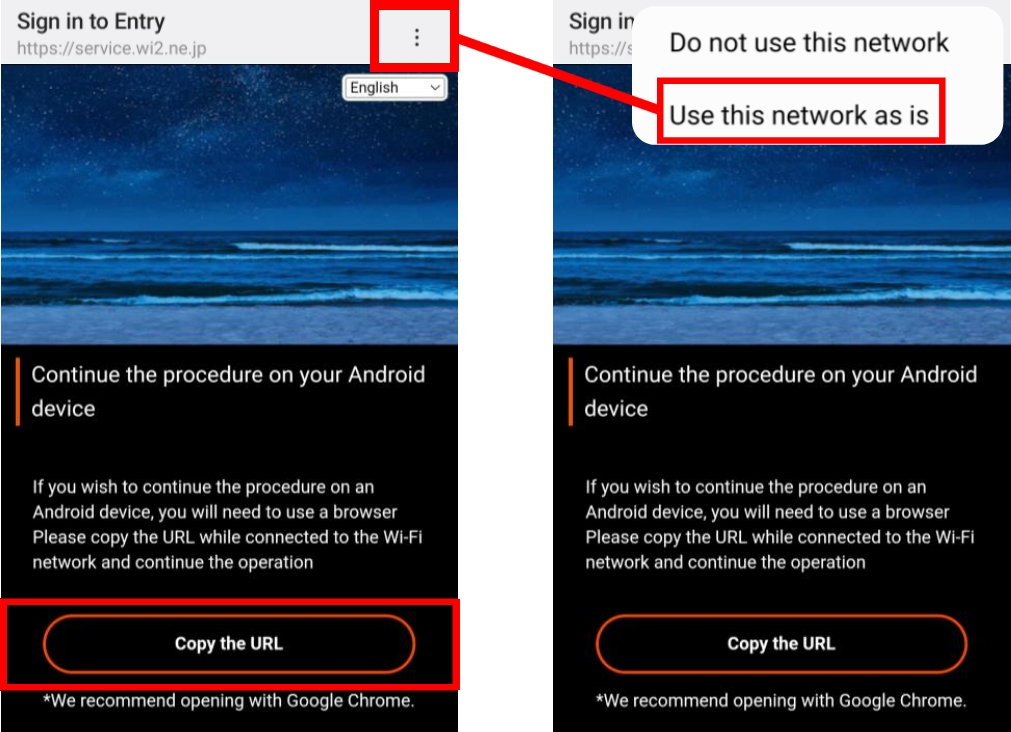
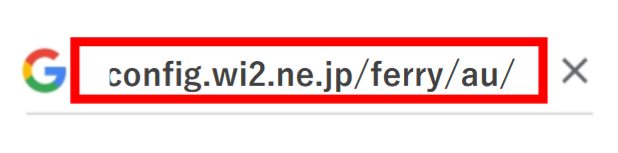
5) You can then open a web browser, paste the URL into the address bar and visit the link -
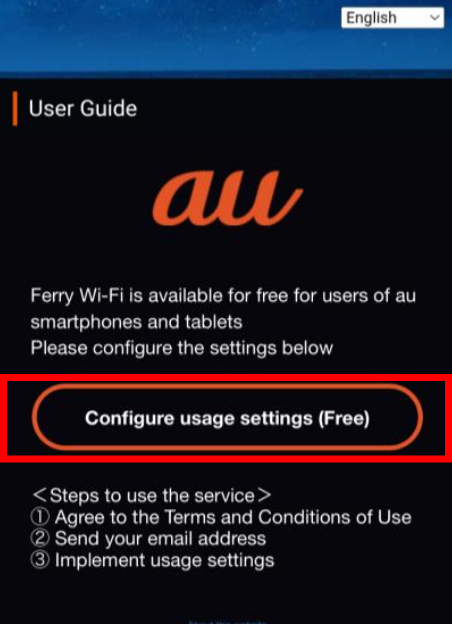
6) On the next screen, tap on the "Configure usage settings (Free)" button -
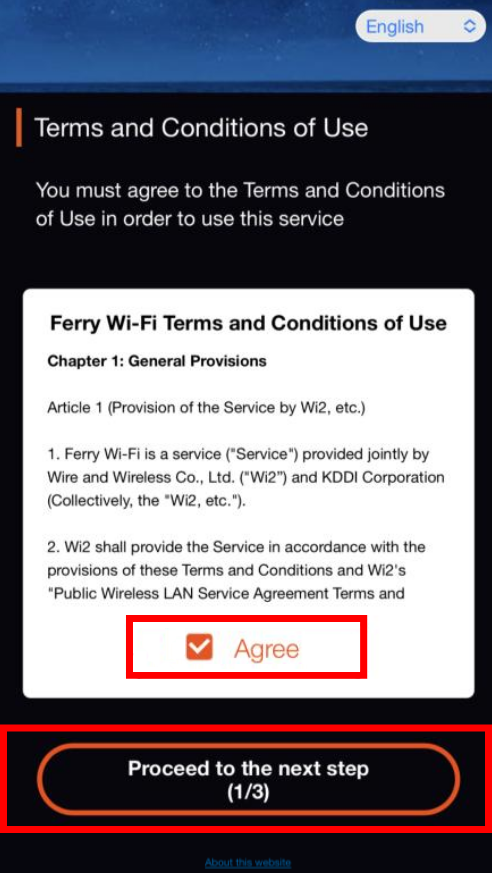
6) Tap on the "Agree" check box and then tap on the "Proceed to the next step" button -
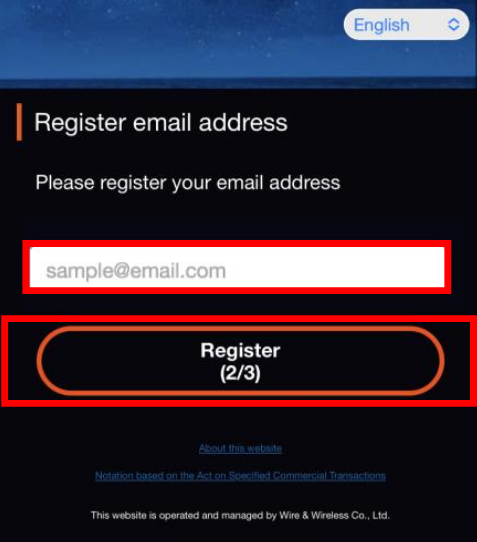
7) Enter your email address and then tap on the "Register" button -
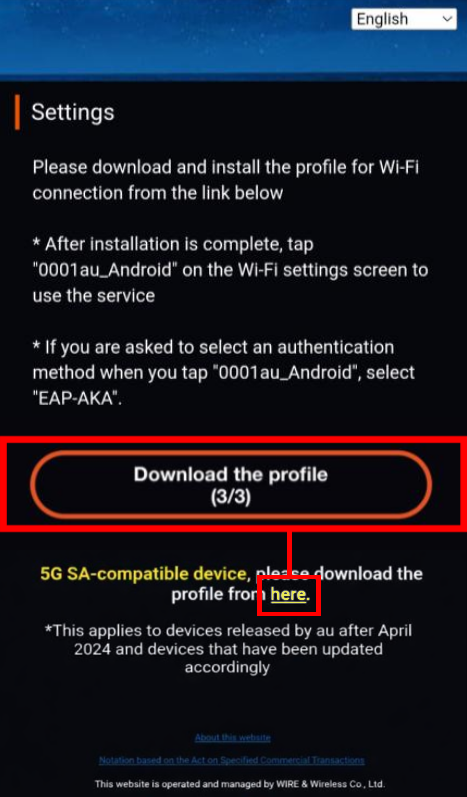
8) Tap on the "Download the profile" button or (if you're using a 5G SA compatible device) you can tap on the "here" link found below the button -
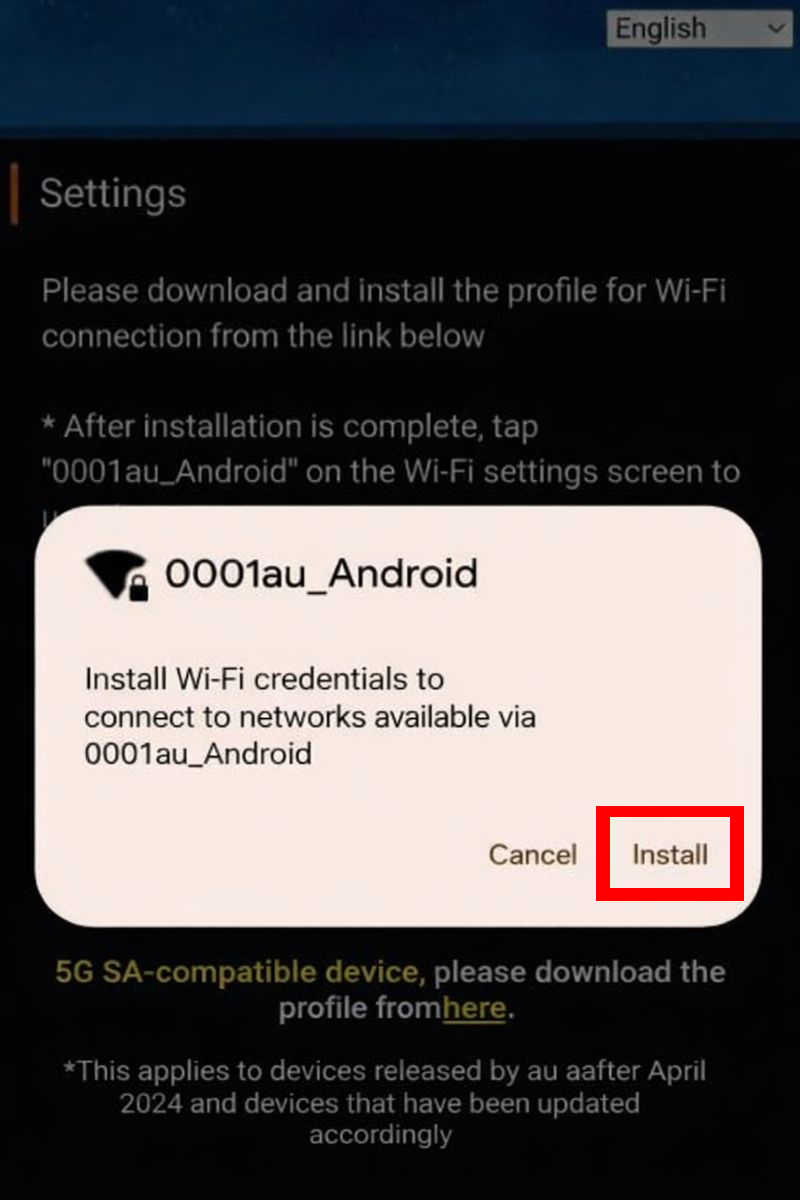
9) Tap on the "Install" button -
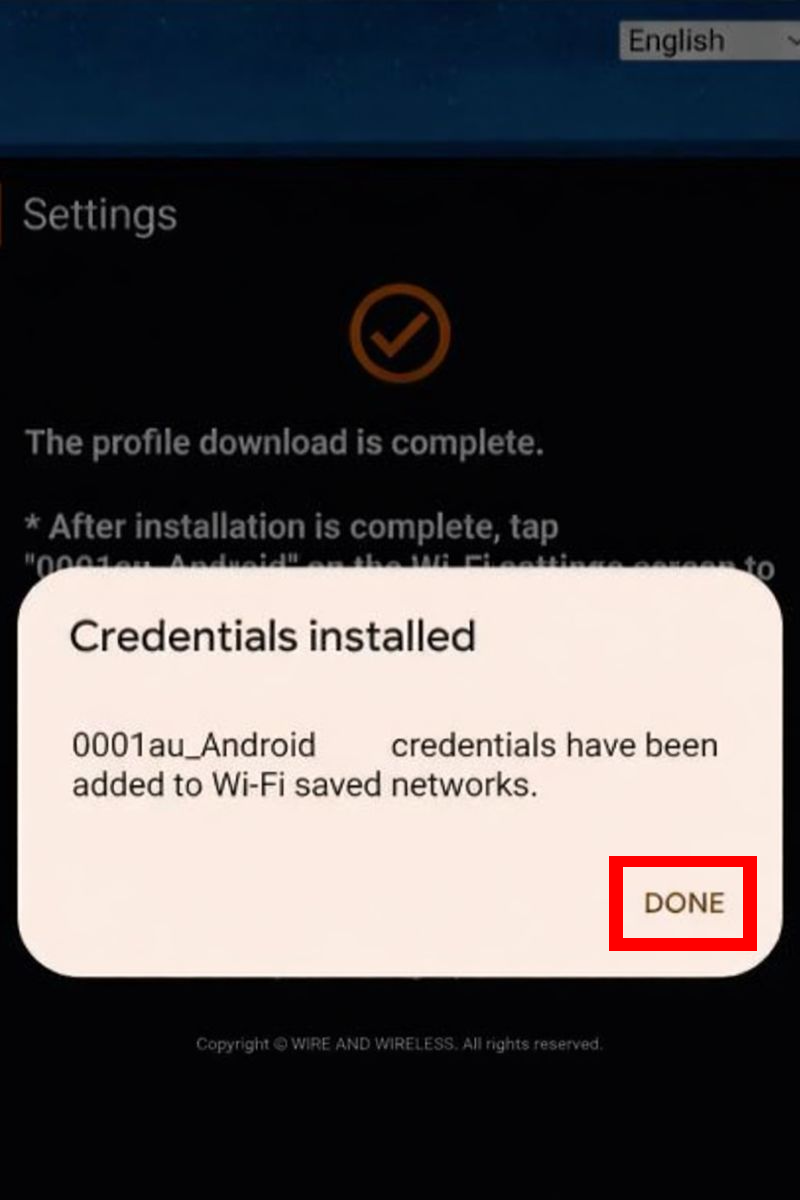
10) Once the profile has been installed, tap on the "Done" button -
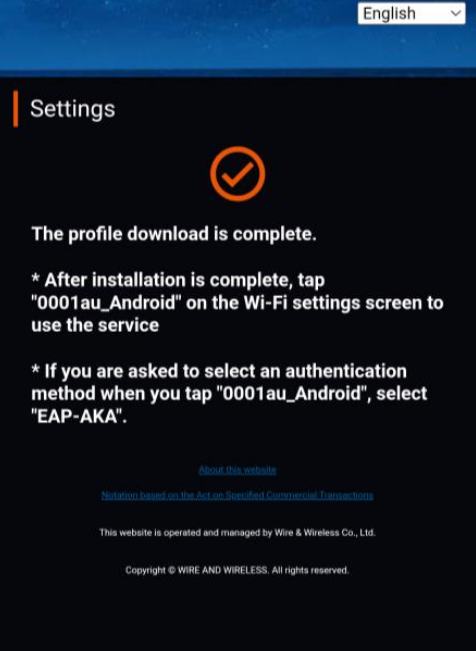
11) You should then see the following information -
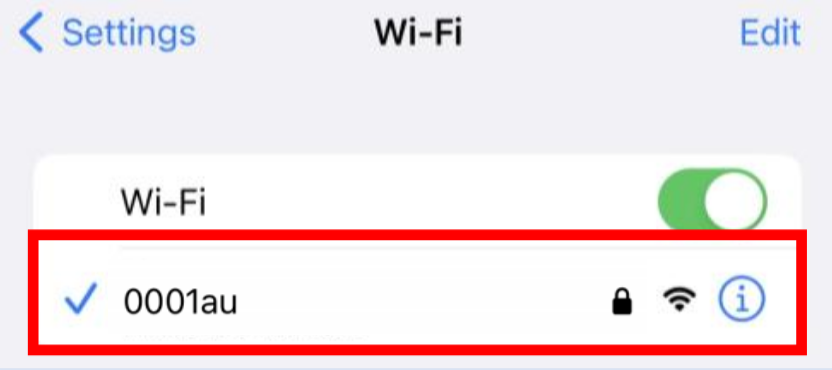
15) Return to the list of WiFi networks and select the "0001au" option to connect -
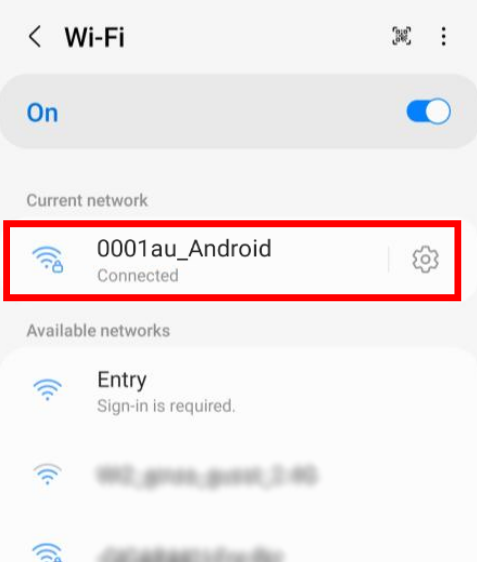
If you are asked to select an "Authentication Method" when connecting to the network, please select the "EAP-AKA" option.
iPhone Handsets:
Click here to view our guide
Once you have arrived on a Starlink supported Ferry, please follow the steps below to connect to the network -
1) Enable WiFi and scan for networks
2) Select the "Entry" network as shown in the example below -
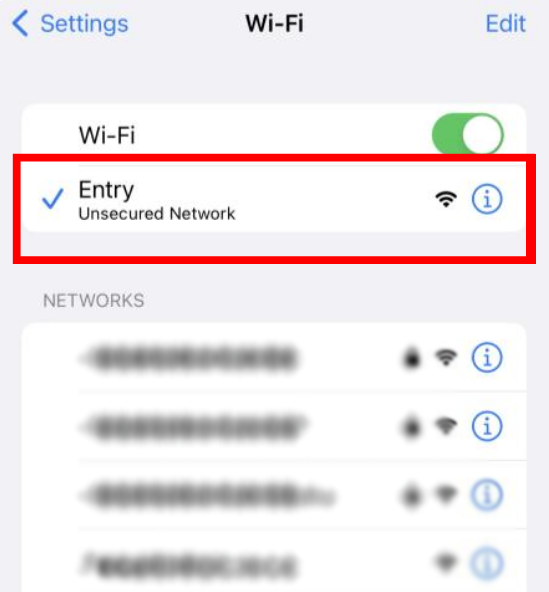
3) You should then be redirected to the page below after connecting to the network (or after opening the web browser).
Please select the "au (au Starlink Direct) Users" option highlighted in red -
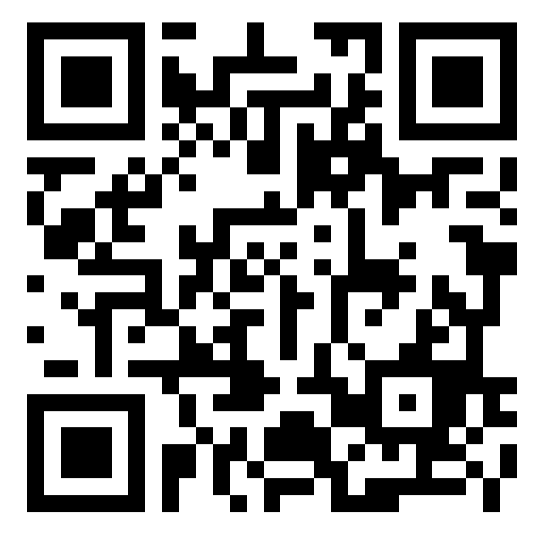
If you are not taken to this page automatically however, please scan the QR code below and then select the "au (au Starlink Direct) Users" option -
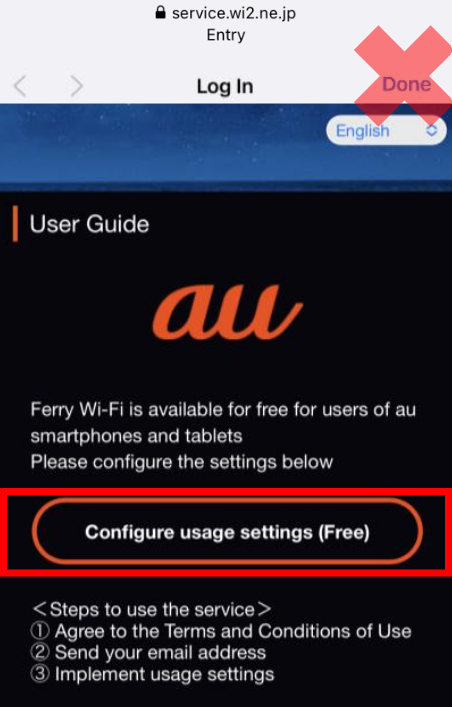
5) Tap on the "Open" button -
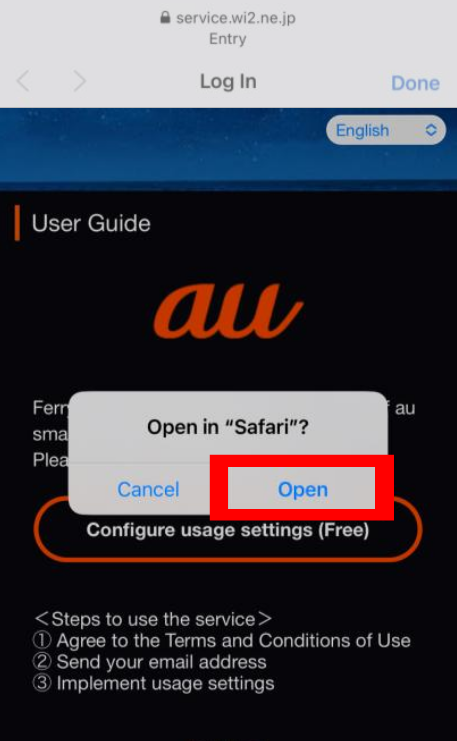
6) Tap on the "Agree" check box and then tap on the "Proceed to the next step" button -
7) Enter your email address and then tap on the "Register" button -
8) Tap on the "Download the profile" button -
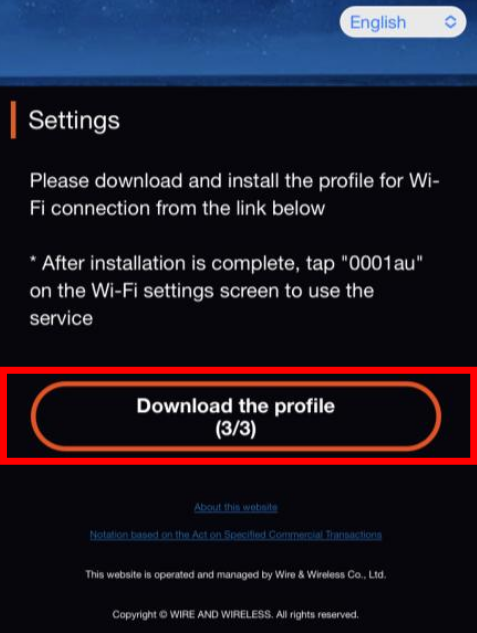
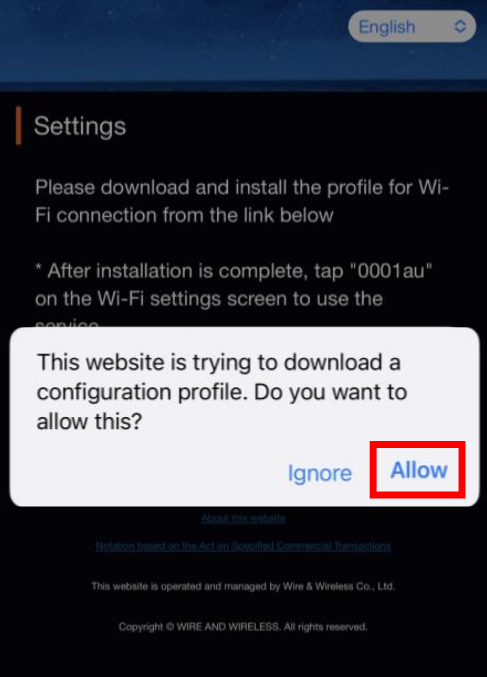
9) Tap on the "Allow" button -
10) Once the profile has been downloaded, tap on the "Close" button -
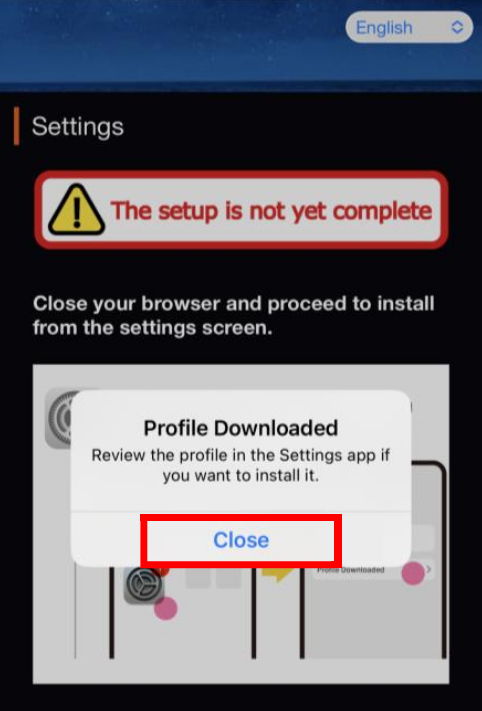
11) Return to the "Settings" menu and then tap on the "Profile Downloaded" button -
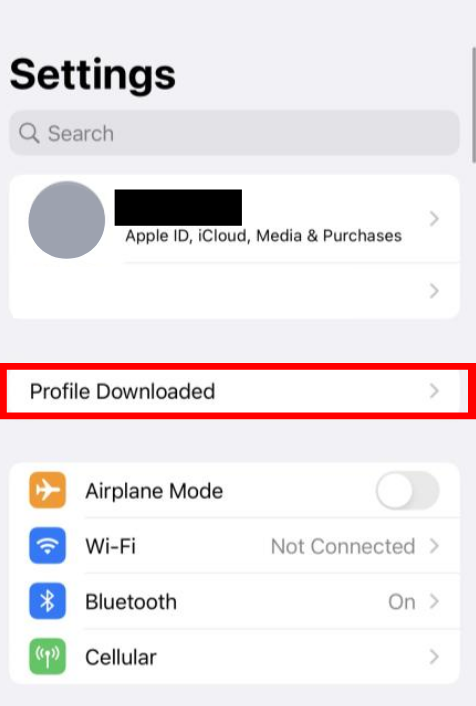
12) On the next screen, tap on the "Install" button at the top right -
* For security, you may also be asked to enter the standard passcode for your device after tapping on the "Install" button
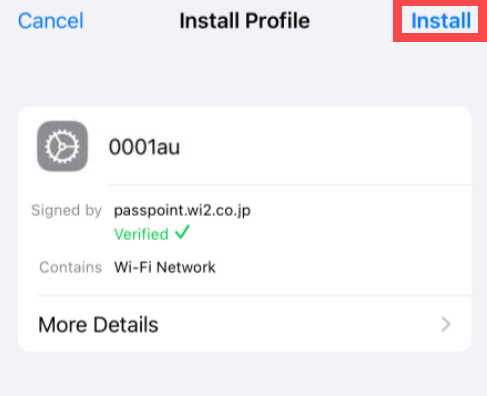
13) Tap on the "Install" button again to confirm the installation -
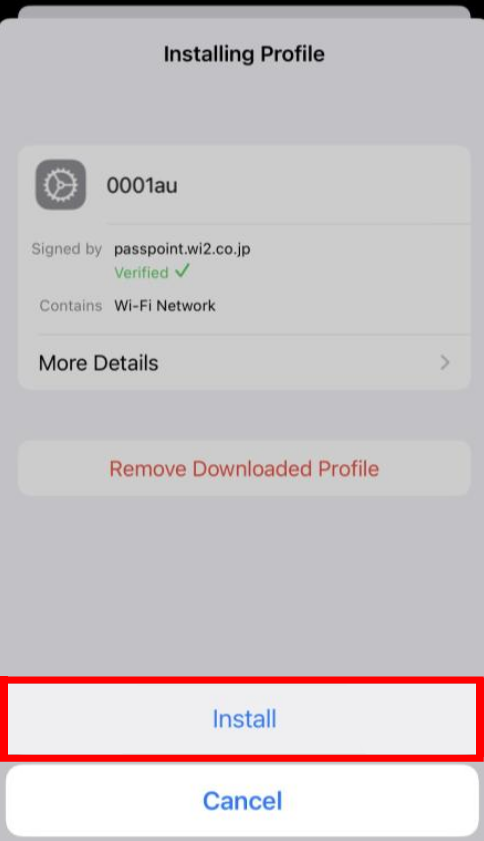
14) Once the profile has been installed, tap on the "Done" button -
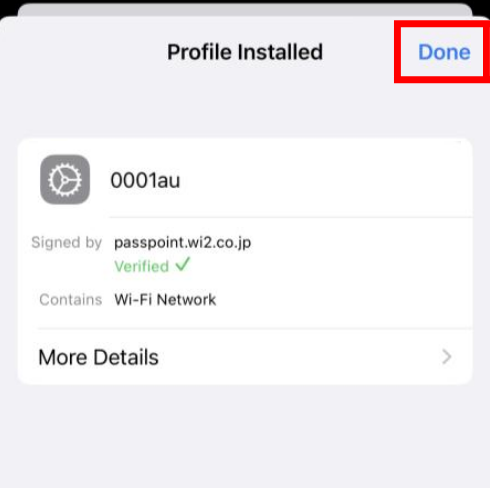
15) Return to the list of WiFi networks and select the "0001au" option to connect -
Mountain Hut (Starlink WiFi Service)
Starlink WiFi services are also available at specific Mountain Huts -
A map showing all supported Mountain Huts can be found here: yamagoya-wi2.com/yamagoya-map
Click here for additional instructions
Android Handsets:
Click here to view our guide
1) Enable WiFi and scan for networks
2) Select the "Entry" network as shown in the example below -
3) You should then be redirected to the page below after connecting to the network (or after opening the web browser).
Please select the "au (au Starlink Direct) Users" option highlighted in red -
If you are not taken to this page automatically however, please scan the QR code below and then select the "au (au Starlink Direct) Users" option -
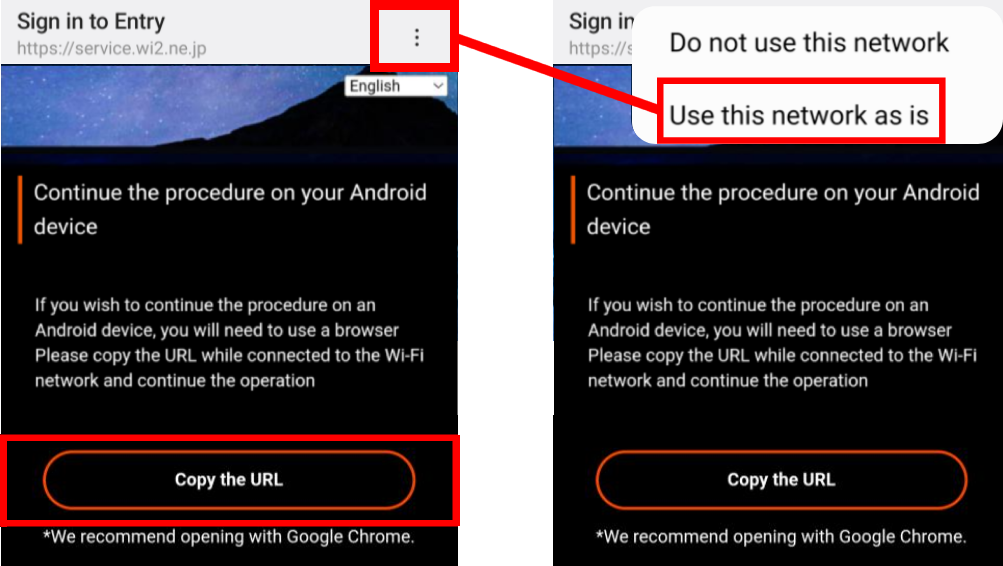
5) You can then open a web browser, paste the URL into the address bar and visit the link -
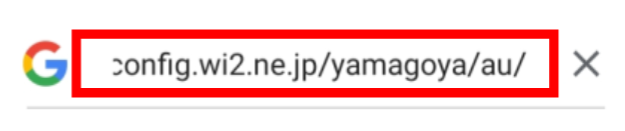
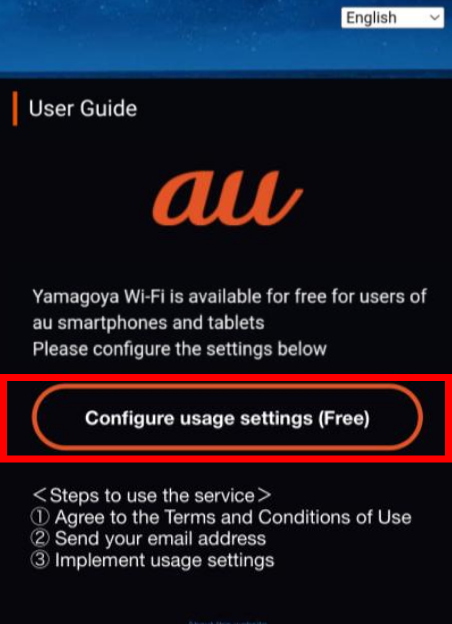
6) On the next screen, tap on the "Configure usage settings (Free)" button -
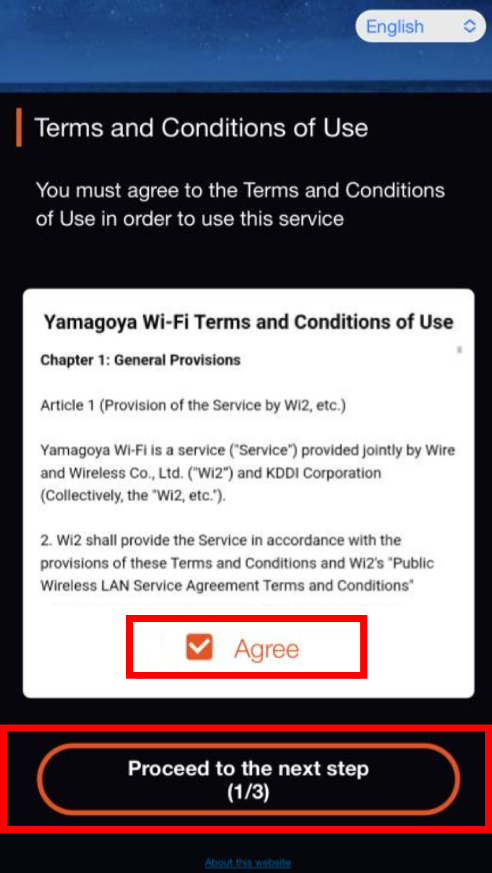
6) Tap on the "Agree" check box and then tap on the "Proceed to the next step" button -
7) Enter your email address and then tap on the "Register" button -
8) Tap on the "Download the profile" button or (if you're using a 5G SA compatible device) you can tap on the "here" link found below the button -
9) Tap on the "Install" button -
10) Once the profile has been installed, tap on the "Done" button -
11) You should then see the following information -
15) Return to the list of WiFi networks and select the "0001au" option to connect -
If you are asked to select an "Authentication Method" when connecting to the network, please select the "EAP-AKA" option.
iPhone Handsets:
Click here to view our guide
Once you have arrived at one of the Starlink supported Mountain Huts , please follow the steps below to connect to the network -
1) Enable WiFi and scan for networks
2) Select the "Entry" network as shown in the example below -
3) You should then be redirected to the page below after connecting to the network (or after opening the web browser).
Please select the "au (au Starlink Direct) Users" option highlighted in red -
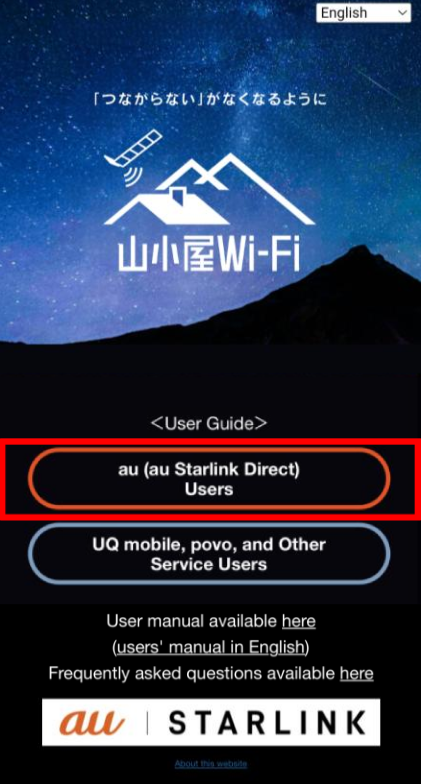
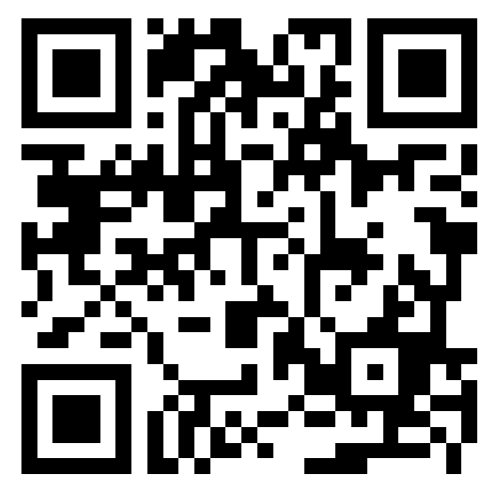
If you are not taken to this page automatically however, please scan the QR code below and then select the "au (au Starlink Direct) Users" option -
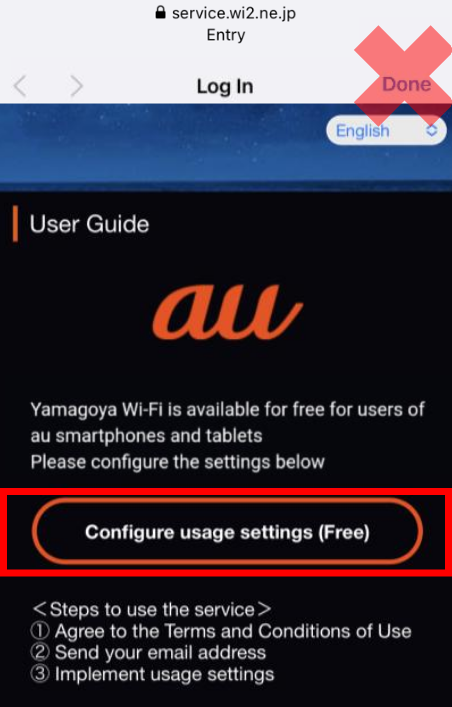
5) Tap on the "Open" button -
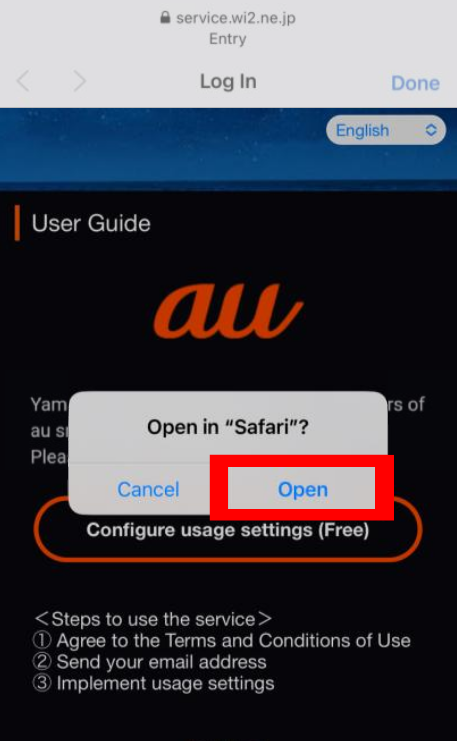
6) Tap on the "Agree" check box and then tap on the "Proceed to the next step" button -
7) Enter your email address and then tap on the "Register" button -
8) Tap on the "Download the profile" button -
9) Tap on the "Allow" button -
10) Once the profile has been downloaded, tap on the "Close" button -
11) Return to the "Settings" menu and then tap on the "Profile Downloaded" button -
12) On the next screen, tap on the "Install" button at the top right -
* For security, you may also be asked to enter the standard passcode for your device after tapping on the "Install" button
13) Tap on the "Install" button again to confirm the installation -
14) Once the profile has been installed, tap on the "Done" button -
15) Return to the list of WiFi networks and select the "0001au" option to connect -
E
If this article didn’t help, head back to the home page to see other solutions OR submit a support ticket using the button below.