There are two different versions of our Voice+Data eSIM product (the latest 5G version which was officially released on March 18th 2026 and the original 4G version) and so please ensure you refer to the correct setup guide.
If you are unsure which version you are using, please login to your account and check the product name.
The latest 5G version will be named "Voice+Data 5G eSIM" within your account and the original 4G version will be named "Voice+Data eSIM" or "Voice+Data 4G eSIM" within your account.
For instructions on how to access Cellular Data, please refer to the relevant guide below -
Voice+Data 5G eSIM
- Voice+Data eSIMs purchased after March 18th 2026
- Product will be named "Voice+Data 5G eSIM" within your account
Click here for additional instructions
Android Handsets:
Click here to view our guide
APN Settings
To access Cellular Data when using an Android handset, you will be required to manually create an APN (Access Point Name) profile using the exact settings shown below.
Name: Mobal
APN: ppsim.jp
Username: pp@sim
Password: jpn
Authentication Type: PAP or CHAP
Creating APN Profiles
On most Android handsets, you can create an APN profile by going to:
Settings > Connections > Mobile Networks > Access Point Names
(or)
Settings > Network & Internet > Mobile Network > Access Point Names (or Advanced and then Access Point Names)
After reaching the "Access Point Names" section, you should then see a "+" symbol or the option to "Add" a new profile. Alternatively, you may see the 'Options' button (which usually appears as three dots) and after tapping this button, you will see the option to create a new profile.
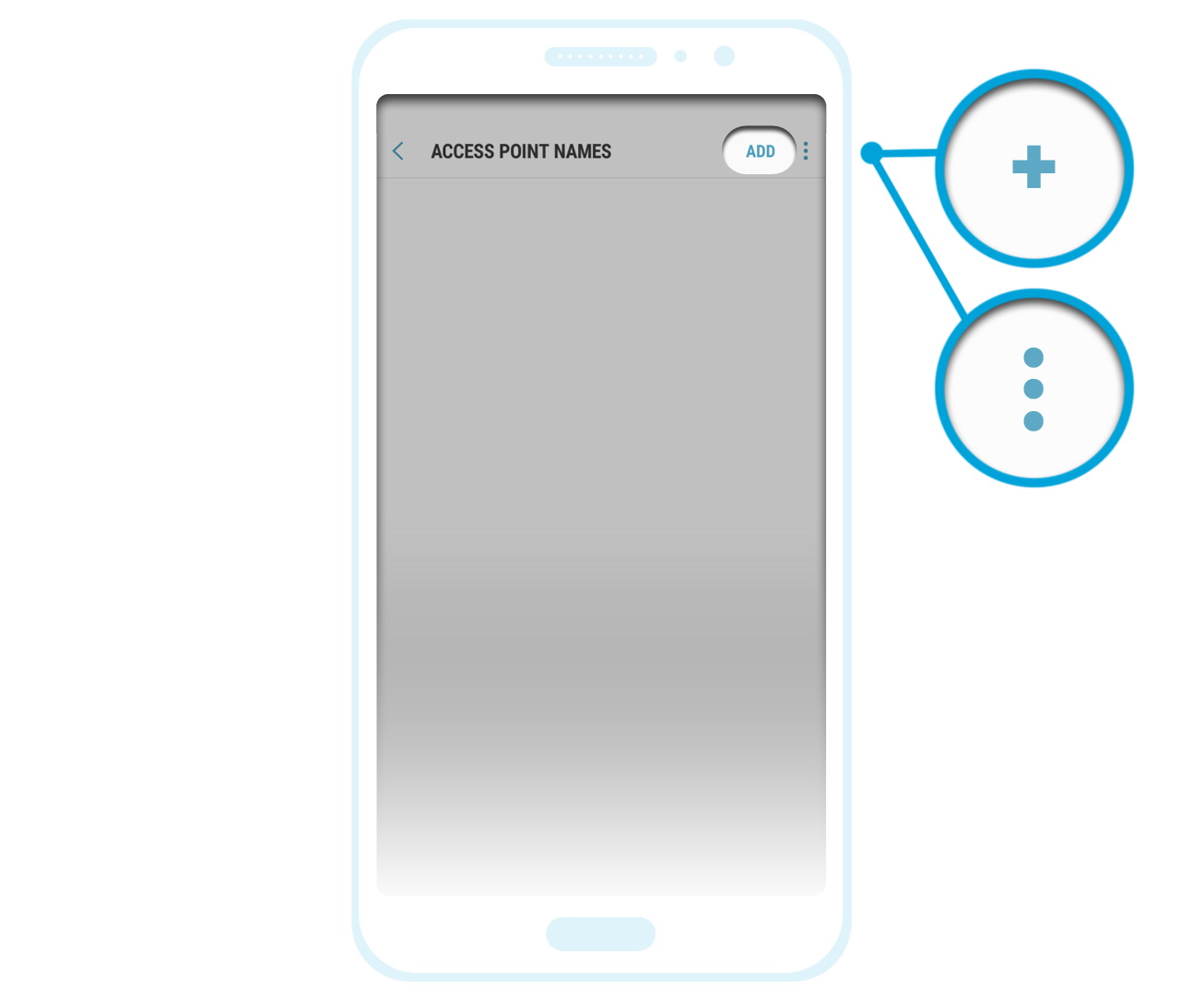
Once you have created the APN profile, please save it and ensure it is selected as the active profile.
You can then enable the Cellular/Mobile Data feature on your device and test the internet connection.
Please ensure the WiFi feature is disabled when testing the data connection and if there any issues, please reboot your device and then test the connection again.
If there are any issues creating / saving an APN profile however, please refer to the information found here: Additional Troubleshooting
Enabling Data
The majority of Android handsets will allow you to enable the Cellular/Mobile Data feature by going to:
Settings > Connections > Data Usage > Enable Cellular/Mobile Data
(or)
Settings > Network & Internet > Tap on your SIM (or the Mobile Network option) and then enable Cellular/Mobile Data
Alternatively, you can enable this feature using a shortcut by swiping down from the top of the screen (so that the top menu expands) and then tapping on the Cellular/Mobile Data option to enable it.
If there is a secondary SIM / eSIM installed in your device, please also ensure that your Mobal eSIM is selected as the primary for cellular data access and calls (this option is usually found within the SIM Management menu on your device).
Network Mode Setting
If you are unable to access Cellular Data after completing the steps above, please also check that the “Network Mode” or “Preferred Network Type” option on your device is configured to prioritize 5G network coverage -
On most Android handsets, you can adjust this setting by going to:
Settings > Connections > Mobile Networks > Network Mode
(or)
Settings > Network & Internet > Mobile Network or Internet > Preferred Network Type
If your device does not support 5G however, you can configure your device to prioritize the 4G LTE connection instead.
Need Further Assistance?
If you have completed all steps above (and your device meets our Compatibility Requirements) but the issue is still ongoing, please reboot your device and then test the connection again after a few minutes.
Please also scan for updates on your device (to ensure the OS is fully up to date) and install any updates that are available. If an update is installed, this may wipe your settings and so we would recommend that you return to the start of this guide and follow the steps again.
If the issue persists however, please send an email to: support@mobal.com
In your message to our support team, please include your account details (such as your Mobal phone number or your Order Confirmation Number) and the following information –
- The make / model of your device and your current location
- Details of which services you are unable to use (i.e. just the cellular data service or all services) and screenshots of any error messages that appear on the 'Home' screen or when attempting load a website
- A screenshot of your current APN (Access Point Name) profile settings
- A screenshot of the “Mobile Networks” section (i.e. the section that shows the current “Network Mode” or “Preferred Network Type” setting)
- A screenshot of the 'SIM Management' menu on your device (the section that shows all eSIMs/SIMs that are installed and the preferred eSIM/SIM for each service)
iPhone Handsets:
Click here to view our guide
Once you have activated / installed the eSIM and you are ready to use it in Japan, please ensure (if you are using a dual-SIM device and there is a secondary SIM or eSIM installed) that our eSIM is selected as the preferred service for Calls and Cellular Data access.
After completing this step, you can then follow the instructions below to install the APN profile and configure your device.
APN Profile
Once you have installed your eSIM, you will need to install our APN (Access Point Name) configuration profile in order to use data.
- Connect to WiFi
- If you are using a dual-SIM device (and there is a secondary SIM / eSIM installed), please ensure that our eSIM is selected as the primary for cellular data access (usually found by going to: Settings > Cellular/Mobile)
- Using the Safari web browser on your iPhone (please do not use an alternative browser), click on the link below to download the correct APN profile -
Voice+Data 5G eSIM: APN Profile Download - Go to Settings > Profile Downloaded > Install or Settings > General > VPN & Device Management
- If you have another APN profile installed, please remove it. Otherwise, skip to step 6
- Click on the Mobal APN profile - Click Install and follow the prompts
Additional Note: Your iPhone may prompt you to enter a PIN during installation. This refers to the device passcode (the code you use to unlock your iPhone).
Enabling Data
On most iPhone handsets, you can enable the Cellular/Mobile Data feature by going to:
Settings > Cellular/Mobile Data > Enable Cellular/Mobile Data
Alternatively, you can enable data using a shortcut by swiping down from the top of the screen (so that the top menu expands) and then tapping on the Cellular/Mobile Data icon to enable it.
Network Mode Setting
If you are unable to access Cellular Data after completing the steps above, please also check that your device is configured to prioritize 5G network coverage -
On most iPhone handsets, you can locate this option by going to:
Settings > Cellular/Mobile Data > Cellular/Mobile Data Options > Voice & Data
If your device does not support 5G however, you can configure your device to prioritize the 4G LTE connection instead.
Additional Troubleshooting
If you have completed all steps above (and your device meets our Compatibility Requirements) but there is still a connection issue, please reboot your device and then test the connection again after a few minutes.
If there is no change, please try the following -
- Scan for updates on your device (to ensure the OS is fully up to date) and install any updates that are available
- Reset the Network Settings by going to: Settings > General > Reset > Reset Network Settings
- Locate the current APN profile by going to Settings > General > VPN & Device Management and then Delete the Profile
- If you have another eSIM/SIM installed, temporarily disable this so that ours becomes the default/primary for calls/data.
- Then Install our APN Profile again (by following the instructions at the start of this guide) and enable the cellular data feature again to retest the data connection. Please also ensure the Network Mode setting remains correct.
- If there is no change, please reboot your device and then test the connection again after a few minutes.
Need Further Assistance?
If any issues still persist after following the steps above, please send an email to: support@mobal.com containing your account details (such as your Mobal phone number or your Order Confirmation Number) and the following information -
- The model name / number of your iPhone handset and your current location
- Details of which services you are unable to use (i.e. just the cellular data service or all services) and screenshots of any error messages
- A screenshot of your current APN profile settings by returning to the "VPN & Device Management" section and tapping on the profile. You may also need to tap on the "More Details" button to view the APN settings we require a screenshot of
- A screenshot of your current settings in the “Cellular/Mobile Data Options” and “Voice & Data” sections
- A screenshot of the 'SIM Management' menu on your device (the section that shows all eSIMs/SIMs that are installed and the preferred eSIM/SIM for each service)
Voice+Data 4G eSIM
- Voice+Data eSIMs purchased before March 18th 2026
- Product will be named "Voice+Data eSIM" or "Voice+Data 4G eSIM" within your account
Click here for additional instructions
Android Handsets:
Click here to view our guide
APN Settings
To access Cellular Data when using an Android handset, you will be required to manually create an APN (Access Point Name) profile using the exact settings shown below.
Name: Mobal
APN: dm.jplat.net
Username: data@jp
Password: data
Authentication Type: PAP or CHAP
PDP Type*: IP
The "PDP Type" setting is not always shown and so you can ignore this section if this setting is not visible.
Creating APN Profiles
On most Android handsets, you can create an APN profile by going to:
Settings > Connections > Mobile Networks > Access Point Names
(or)
Settings > Network & Internet > Mobile Network > Access Point Names (or Advanced and then Access Point Names)
After reaching the "Access Point Names" section, you should then see a "+" symbol or the option to "Add" a new profile. Alternatively, you may see the 'Options' button (which usually appears as three dots) and after tapping this button, you will see the option to create a new profile.
Once you have created the APN profile, please save it and ensure it is selected as the active profile.
You can then enable the Cellular/Mobile Data feature on your device and test the internet connection.
Please ensure the WiFi feature is disabled when testing the data connection and if there any issues, please reboot your device and then test the connection again.
If there are any issues creating / saving an APN profile however, please refer to the information found here: Additional Troubleshooting
Enabling Data
The majority of Android handsets will allow you to enable the Cellular/Mobile Data feature by going to:
Settings > Connections > Data Usage > Enable Cellular/Mobile Data
(or)
Settings > Network & Internet > Tap on your SIM (or the Mobile Network option) and then enable Cellular/Mobile Data
Alternatively, you may be able to enable this feature using a shortcut by swiping down from the top of the screen (so that the top menu expands) and then tapping on the Cellular/Mobile Data option to enable it.
If there is a secondary SIM / eSIM installed in your device, please also ensure that your Mobal eSIM is selected as the primary for cellular data access and calls (this option is usually found within the SIM Management menu on your device).
Network Mode Setting
If you are unable to access Cellular Data after completing the steps above, please also check that the “Network Mode” or “Preferred Network Type” option on your device is configured to prioritize the 4G LTE connection.
On most Android handsets, you can adjust this setting by going to:
Settings > Connections > Mobile Networks > Network Mode
(or)
Settings > Network & Internet > Mobile Network or Internet > Preferred Network Type
Need Further Assistance?
If you have completed all steps above (and your device meets our Compatibility Requirements) but the issue is still ongoing, please reboot your device and then test the connection again after a few minutes.
Please also scan for updates on your device (to ensure the OS is fully up to date) and install any updates that are available. If an update is installed, this may wipe your settings and so we would recommend that you return to the start of this guide and follow the steps again.
If the issue persists however, please send an email to: support@mobal.com
In your message to our support team, please include your account details (such as your Mobal phone number or your Order Confirmation Number) and the following information –
- The make / model of your device and your current location
- Details of which services you are unable to use (i.e. just the cellular data service or all services) and screenshots of any error messages that appear on the 'Home' screen or when attempting load a website
- A screenshot of your current APN (Access Point Name) profile settings
- A screenshot of the “Mobile Networks” section (i.e. the section that shows the current “Network Mode” or “Preferred Network Type” setting)
- A screenshot of the 'SIM Management' menu on your device (the section that shows all eSIMs/SIMs that are installed and the preferred eSIM/SIM for each service)
iPhone Handsets:
Click here to view our guide
Once you have activated / installed the eSIM and you are ready to use it in Japan, please ensure (if you are using a dual-SIM device and there is a secondary SIM or eSIM installed) that our eSIM is selected as the preferred SIM card for Calls and Cellular Data access.
After completing this step, you can then follow the instructions below to install the APN profile and configure your device.
APN Profile
Once you have installed your eSIM, you will need to install our APN (Access Point Name) configuration profile in order to use data.
- Connect to WiFi
- If you are using a dual-SIM device (and there is a secondary SIM / eSIM installed), please ensure that our SIM card is selected as the primary SIM for cellular data access (usually found by going to: Settings > Cellular/Mobile)
- Using the Safari web browser on your iPhone (do not use an alternative browser), please click on the link below to download the correct APN profile.
Voice+Data 4G eSIM: APN Profile Download - Go to Settings > Profile Downloaded > Install or Settings > General > VPN & Device Management
- If you have another APN profile installed, please remove it. Otherwise, skip to step 6
- Click on the Mobal APN profile - Click Install and follow the prompts
Additional Note: Some iPhones may prompt you to enter a PIN during installation. This refers to the device passcode (the code you use to unlock your iPhone).
Enabling Data
On most iPhone handsets, you can enable the Cellular/Mobile Data feature by going to:
Settings > Cellular/Mobile Data > Enable Cellular/Mobile Data
Alternatively, you can enable data using a shortcut by swiping down from the top of the screen (so that the top menu expands) and then tapping on the Cellular/Mobile Data icon to enable it.
Network Mode Setting
If you are unable to access Cellular Data after completing the steps above, please also check that your device is configured to prioritize the 4G LTE connection -
On most iPhone handsets, you can locate this option by going to:
Settings > Cellular/Mobile Data > Cellular/Mobile Data Options > Voice & Data
Additional Troubleshooting
If you have completed all steps above (and your device meets our Compatibility Requirements) but there is still a connection issue, please reboot your device and then test the connection again after a few minutes.
If there is no change, please try the following -
- Scan for updates on your device (to ensure the OS is fully up to date) and install any updates that are available
- Reset the Network Settings by going to: Settings > General > Reset > Reset Network Settings
- Locate the current APN profile by going to Settings > General > VPN & Device Management and then Delete the Profile
- If you have another eSIM/SIM installed, temporarily disable this so that ours becomes the default/primary for calls/data.
- Then Install our APN Profile again (by following the instructions at the start of this guide) and enable the cellular data feature again to retest the data connection. Please also ensure the Network Mode setting remains correct.
- If there is no change, please reboot your device and then test the connection again after a few minutes.
Need Further Assistance?
If any issues still persist after following the steps above, please send an email to: support@mobal.com containing your account details (such as your Mobal phone number or your Order Confirmation Number) and the following information -
- The model name / number of your iPhone handset and your current location
- Details of which services you are unable to use (i.e. just the cellular data service or all services) and screenshots of any error messages
- A screenshot of your current APN profile settings by returning to the "VPN & Device Management" section and tapping on the profile. You may also need to tap on the "More Details" button to view the APN settings we require a screenshot of
- A screenshot of your current settings in the “Cellular/Mobile Data Options” and “Voice & Data” sections
- A screenshot of the 'SIM Management' menu on your device (the section that shows all eSIMs/SIMs that are installed and the preferred eSIM/SIM for each service)
If this article didn’t help, head back to the home page to see other solutions OR submit a support ticket using the button below.