Please note that the MobalPay Payment Card service will be discontinued on April 27th. From May 1st your monthly Mobal bill will be issued as a Smartpit cash payment instead.
How Billing Works
- On the 1st of each month, your Smartpit bill will be issued.
- You will receive an email titled “Cash Payment Now Due For Mobal Service”.
- From the date of this email, you will have 10 days to complete your payment.
How to Make Your Payment
You can pay your Smartpit bill in cash at any of the following convenience stores:
- Lawson
- Ministop
- FamilyMart
Follow the steps below to complete your payment:
Lawson / Mini Stop Guide
Click here for instructions
- Step 1 -
Visit a "Lawson" or "Mini Stop" convenience store and locate their payment machine (which is a multimedia terminal called “Loppi”). Please note that this machine displays the Japanese language only.
- Step 2 -
Click on the “Various Payments” option shown on the left
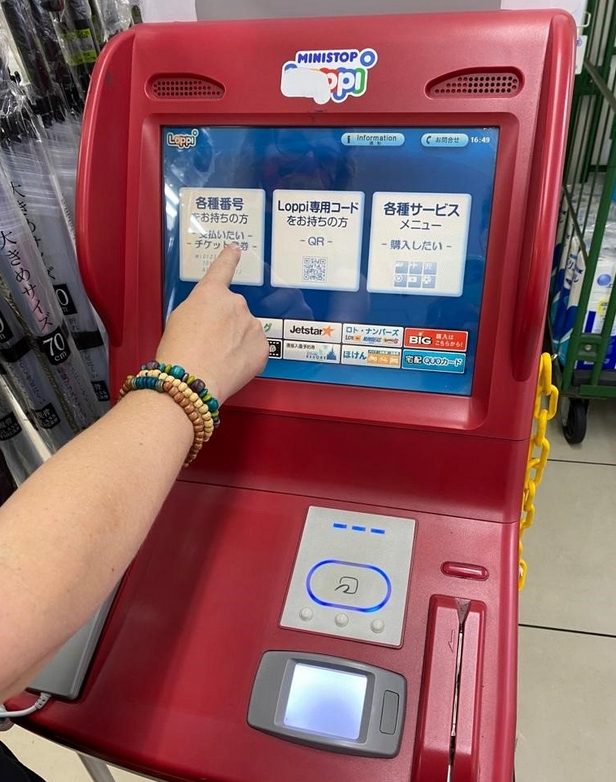
- Step 3 -
Enter the SmartPit Invoice Number from the email you received.
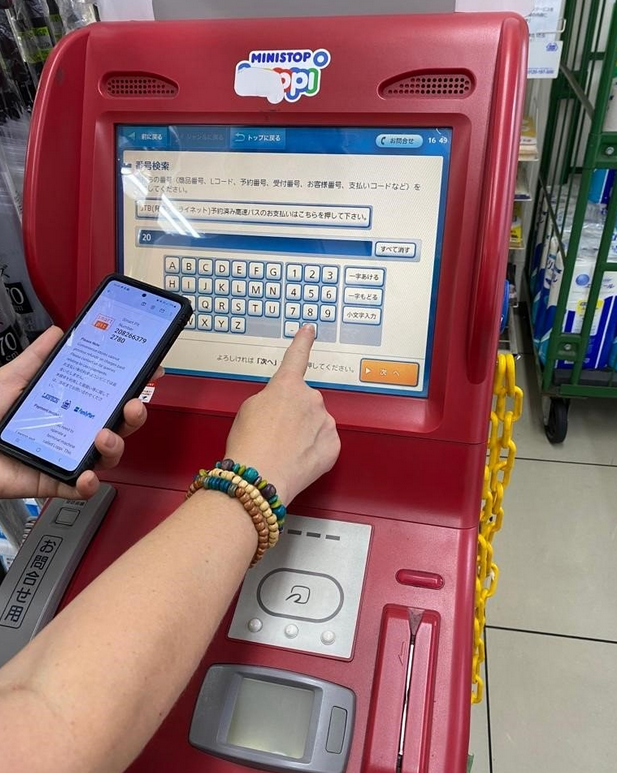
- Step 4 -
Click "Next" (the orange button) to continue.
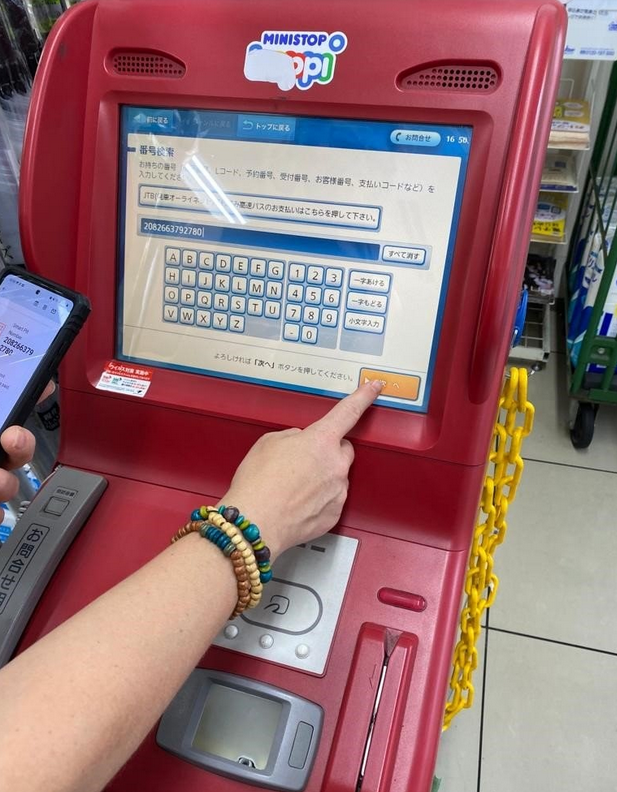
- Step 5 -
Select the white text bar at the top to make a payment using Smart Pit.
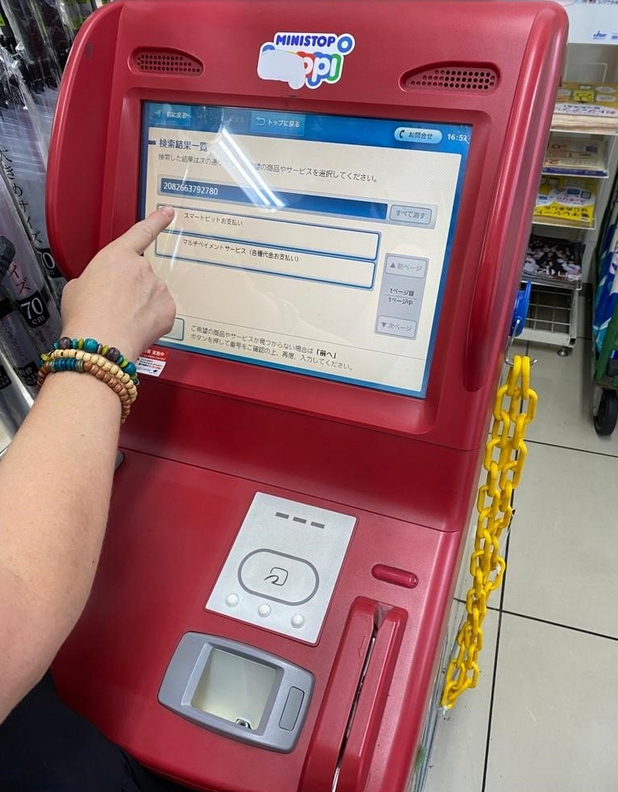
- Step 6 -
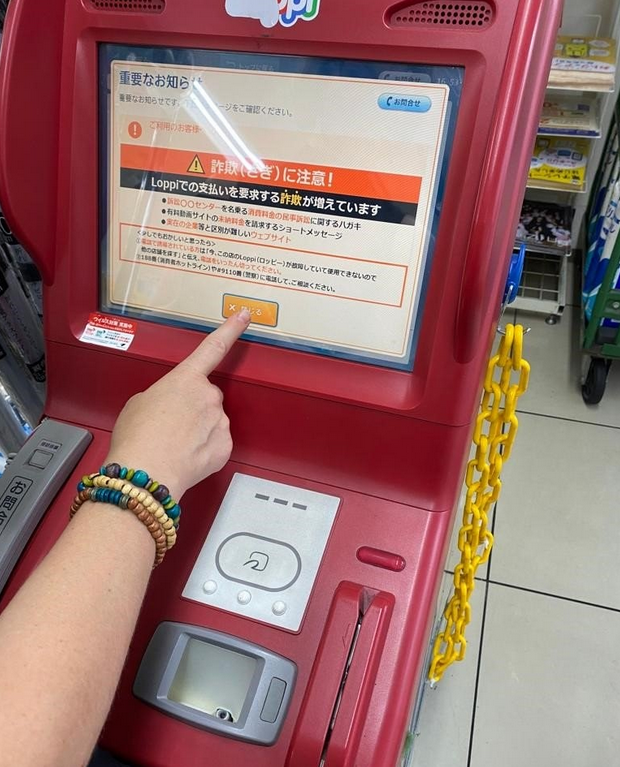
Click the button at the bottom of the screen to close the “Be Careful” window (this message warns you to be careful of scammers etc).
- Step 7 -
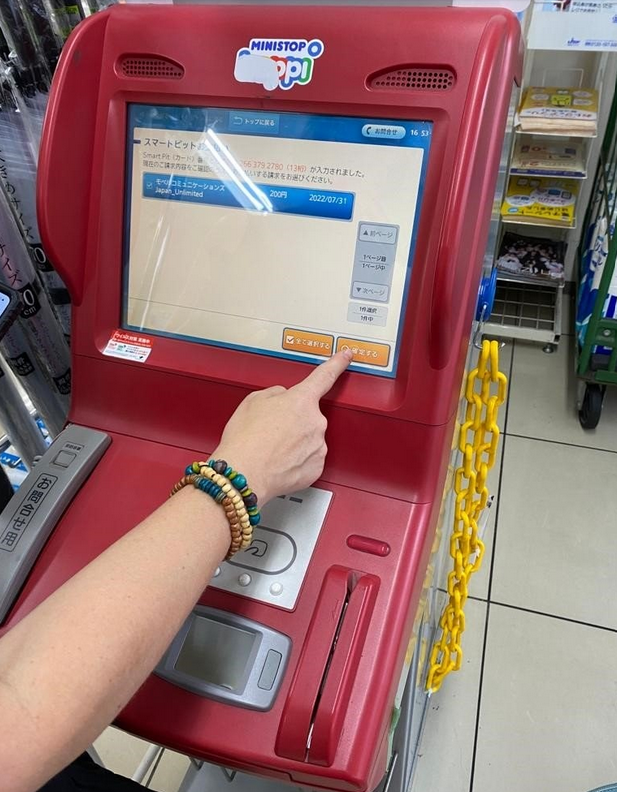
Select the invoice you wish to pay (by tapping on the blue text bar) and then tap on the "Confirm" button to proceed (the orange button on the right).
- Step 8 -
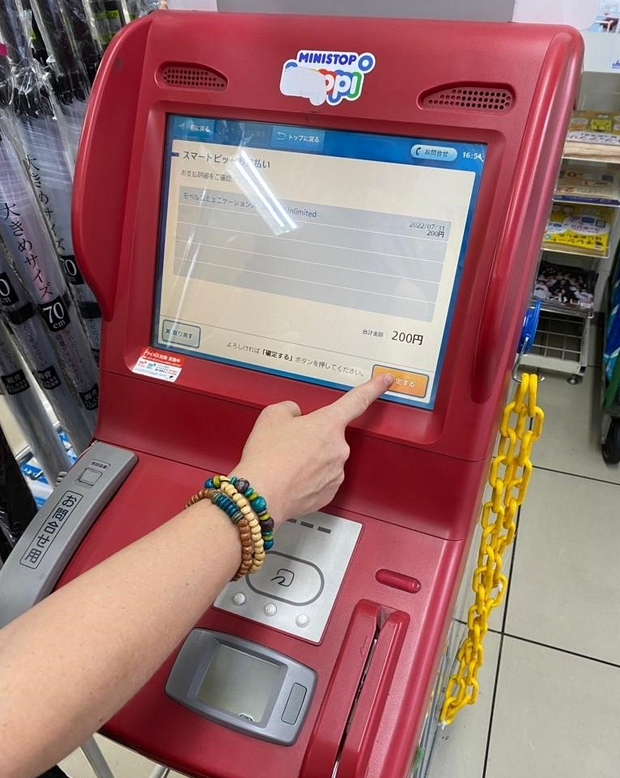
If all details are correct, tap on the orange "Confirm" button. Your payment slip will then be printed and you can it take to the cash register.
Family Mart Guide
Click here to view our guide
- Step 1 -
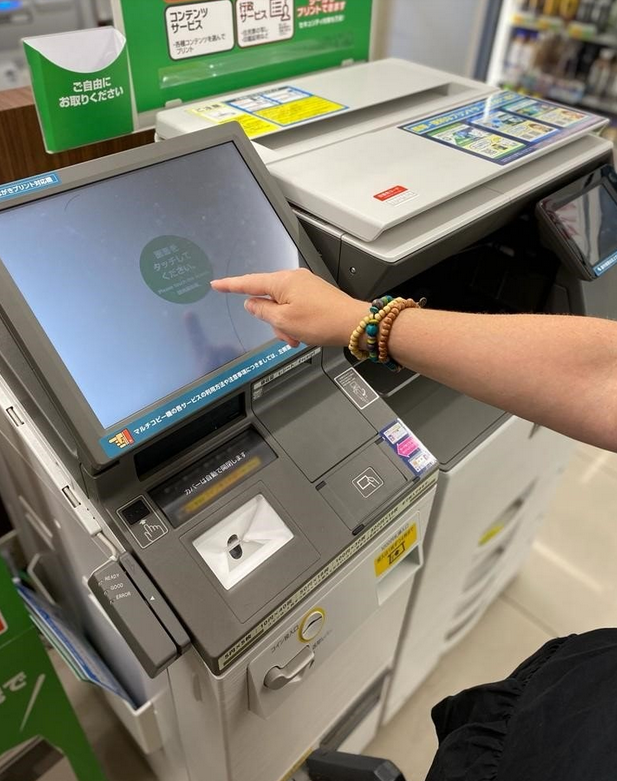
Touch the screen to start.
- Step 2 -
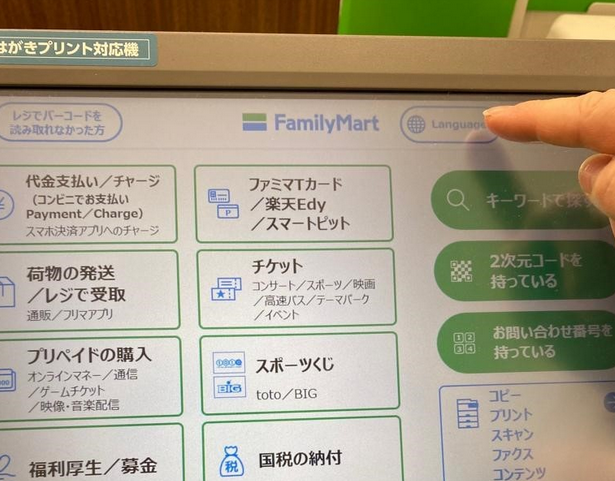
Tap on the "Language" button to choose your preferred language setting...
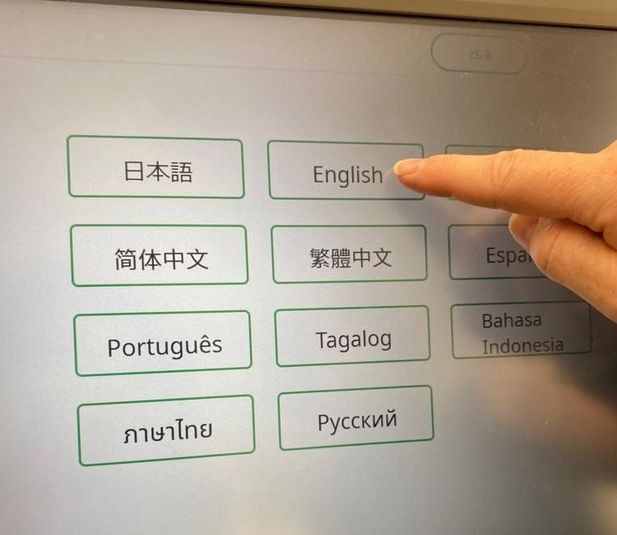
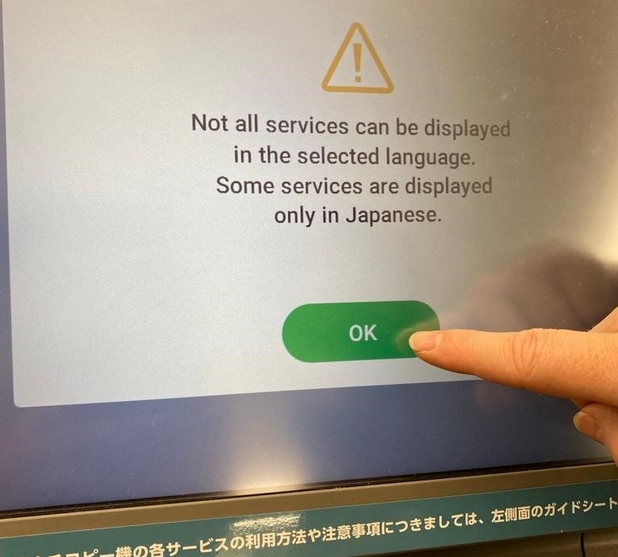
and then tap on the "OK" button to proceed...
- Step 3 -
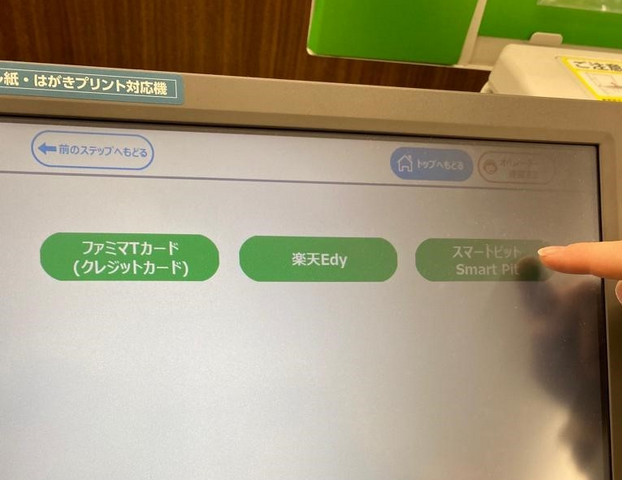
Select the option that mentions "Smart Pit"....
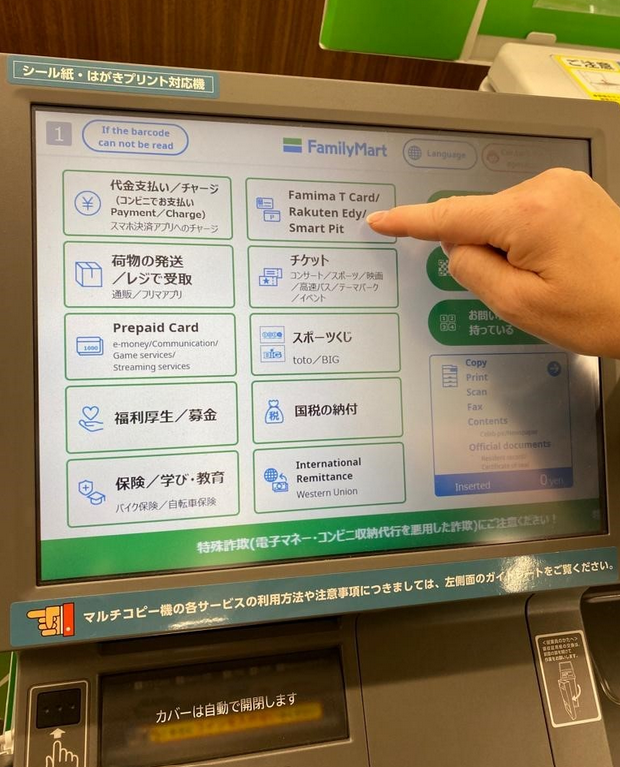
and then select the "Smart Pit" option on the next screen...
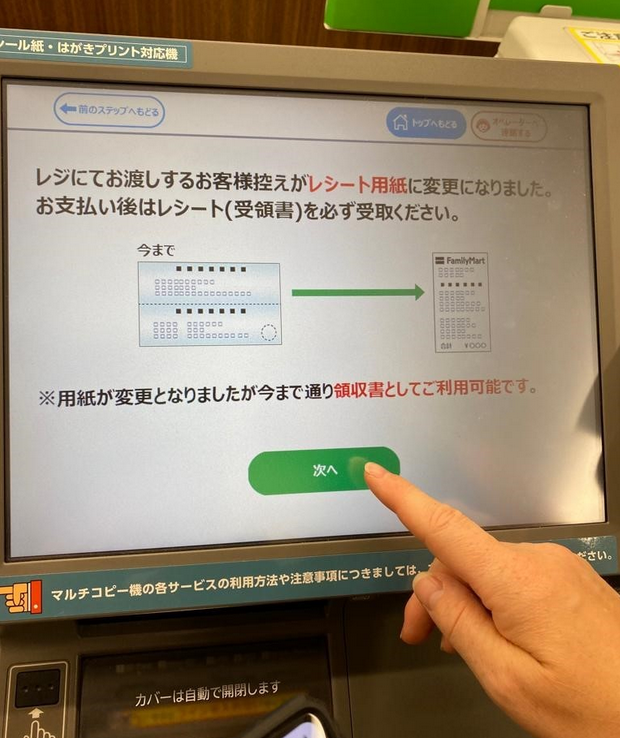
- Step 4 -
Tap the green button (which translates to "Next") as this screen just notifies users to keep the receipt from the cash register (as their receipt of payment).
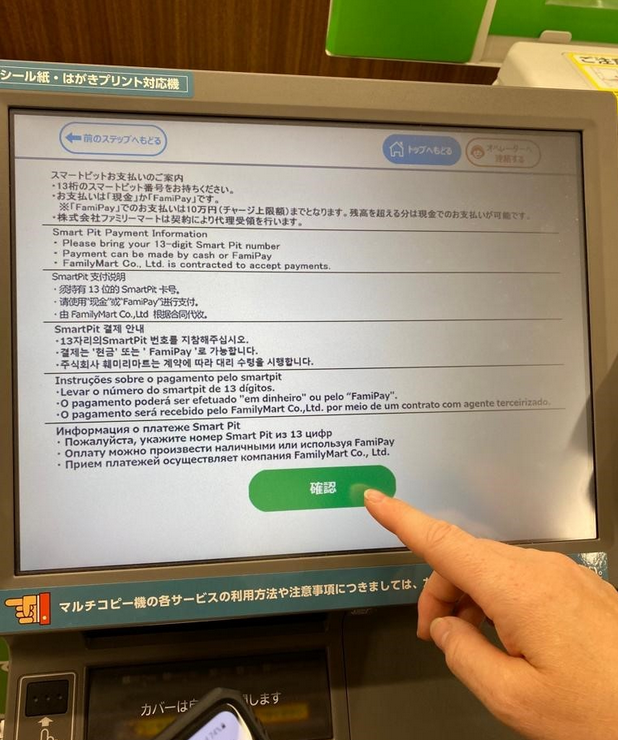
- Step 5 -
The next screen will display the Smart Pit payment information in several languages, including English. To proceed to the next screen, tap on the green button (which translates to "Confirm").
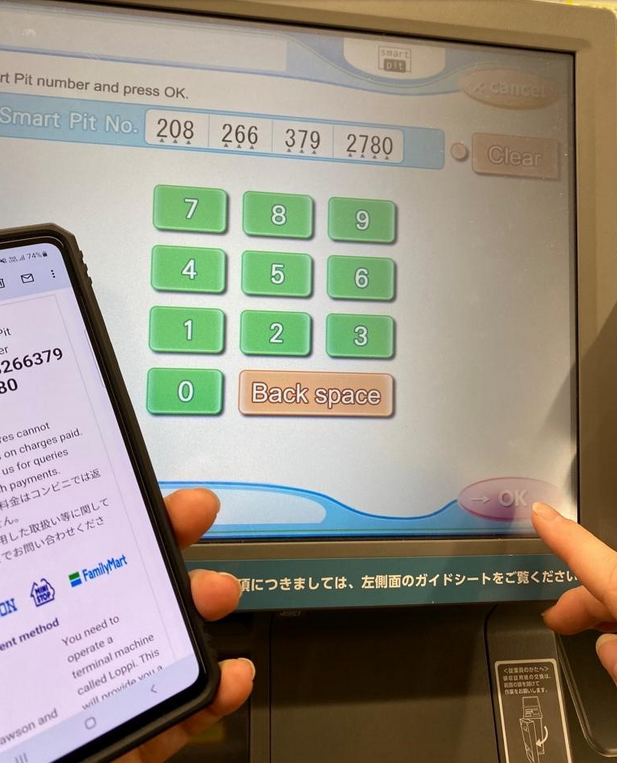
- Step 6 -
Type in the 13-digit Smart Pit Number and then tap on the "OK" button.
- Step 7 -
If all details are correct, tap on the "Select" button next to the bill...
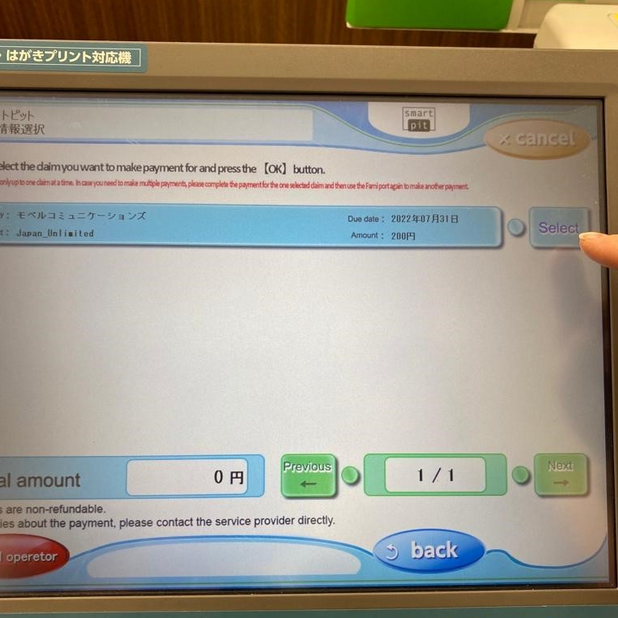
and then tap on the "OK" button once you have made your selection.
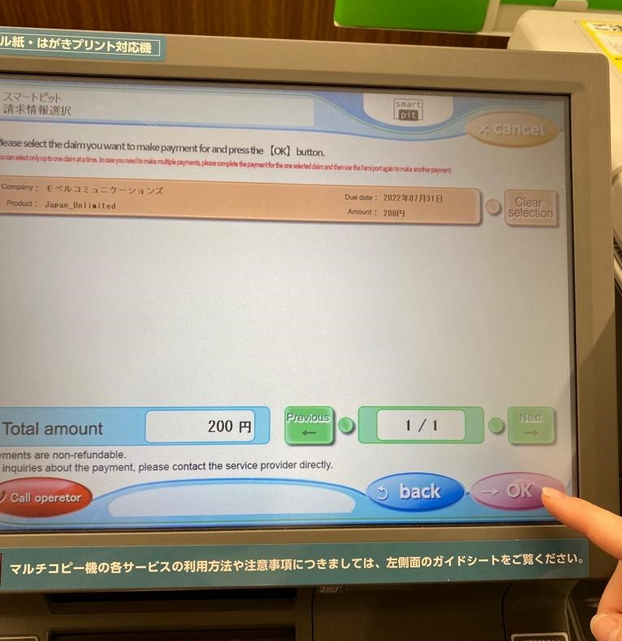
- Step 8 -
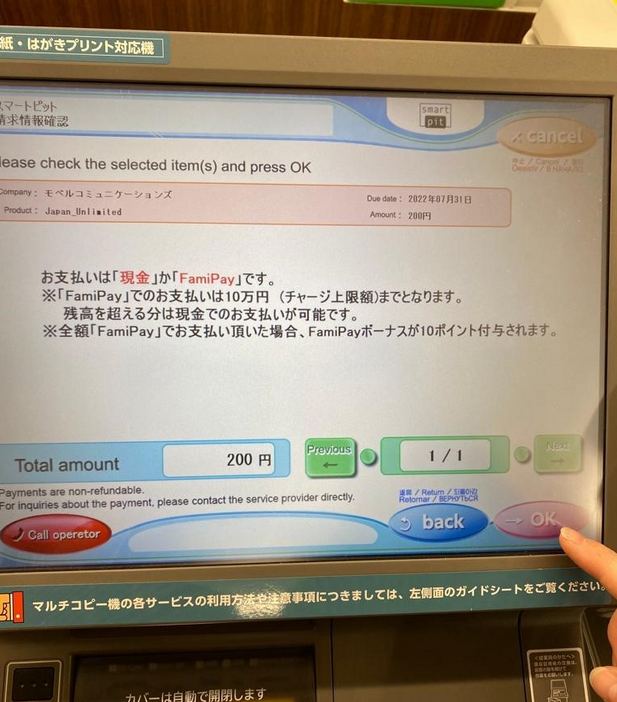
Click the "OK" button after reviewing the information.
This screen just explains that payments must be made in cash or by means of "FamiPay". Users who choose to pay via "FamiPay" have a payment limit of 100,000 yen but you can pay any balance exceeding that amount in cash. For users who pay the full amount using "FamiPay", a bonus of 10 points is rewarded.
- Step 9 -
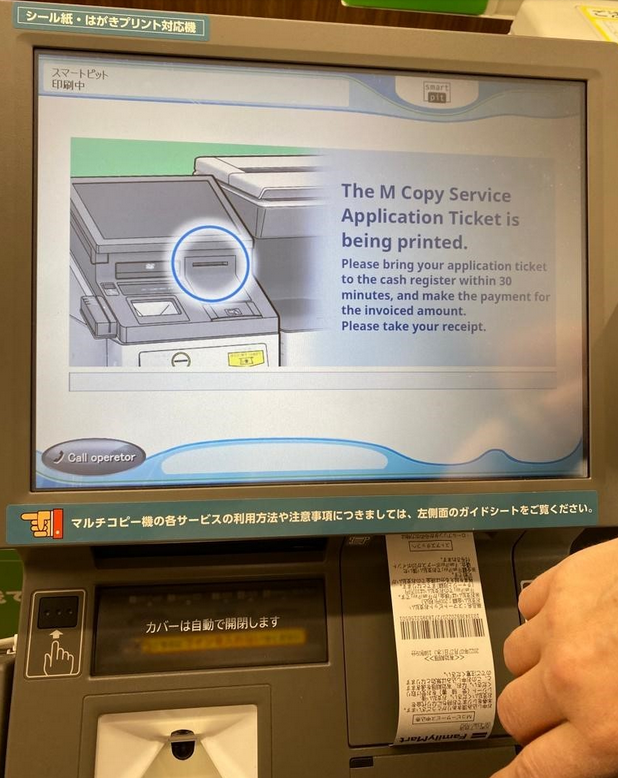
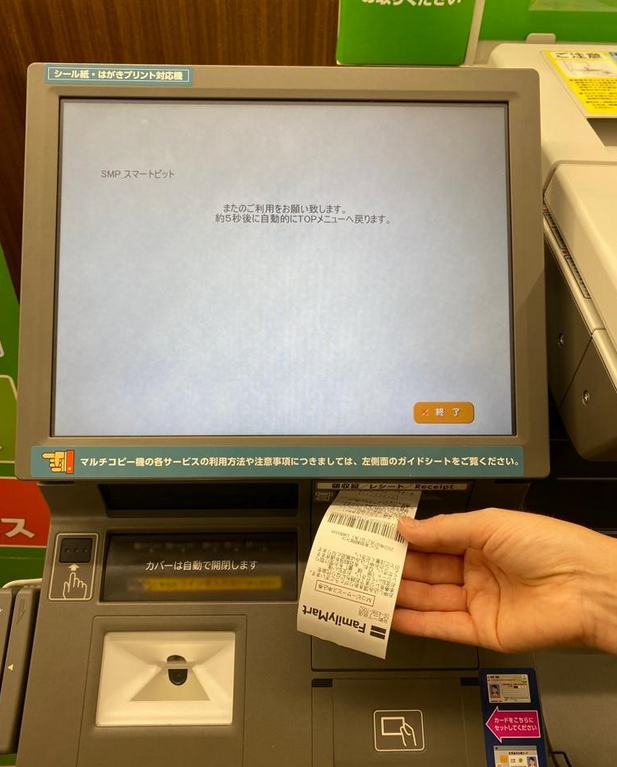
An "Application Ticket’ will then be printed.
- Step 10 -
Take the printed "Application Ticket" to the cash register to make a payment.
If this article didn’t help, head back to the home page to see other solutions OR submit a support ticket using the button below.